


GCamera: GCam & HD Pro Photos
3.7560.00 Reviews
App Specs
- Version
- 2.24.5
- Updated On
- License
- Free
- Downloads
- 10,000,000+
- Developer
- Gcam
- Categories
- Photography
- Platform
- Android
Screenshots
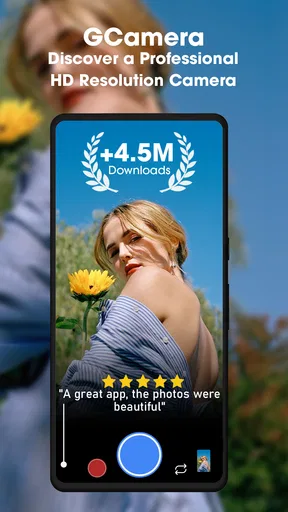
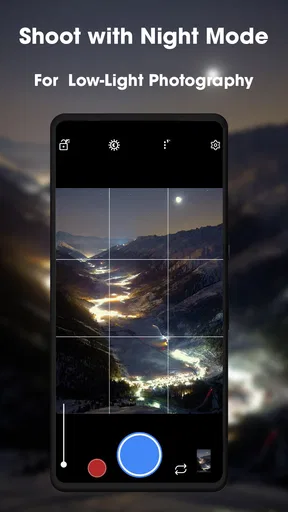
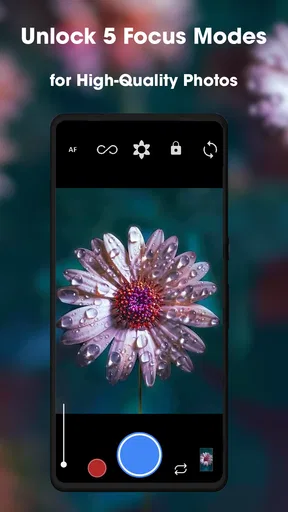
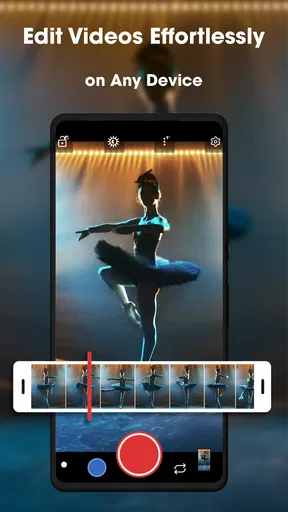
 Analysis by AppCompare
I like the idea behind GCamera: GCam & HD Pro Photos: make phone photography feel more deliberate without turning every picture into a technical project. It is a photography app from Gcam, and its appeal is clearest when I want more control than my phone’s standard camera offers but still need to be ready for an unplanned moment. Its headline promise is broad, though, so I would treat it as a camera app worth testing on your own device rather than assume every advertised style will work identically on every phone.
Why the camera controls matter in everyday use
The most useful question is not whether a camera app has a long feature list, but whether it helps you get the shot you actually want. Here, modes such as HDR, night photography and portrait give you different starting points for common situations. They can reduce the need to adjust every image afterward, while the manual controls offer another route when automatic results are not quite right.
For instance, HDR is most relevant when a scene contains both bright and shaded areas: a person standing near a sunny window, or a landscape with a bright sky above darker ground. The practical trade-off is that HDR is not automatically the best choice for every subject. If someone is moving, a multi-frame approach can make the result less dependable than a straightforward shot. I would use it for still scenes and compare the result with a regular exposure before deciding which version to keep.
Night mode is similarly situational. It can help when I am photographing a still subject under dim light, but it cannot make a moving person hold still. At night, I would brace the phone against a wall or table when possible, tap to focus carefully, and take more than one frame rather than expect a single exposure to rescue a difficult scene. That small change in how I shoot can matter as much as switching modes.
A sensible workflow for portraits and edits
Portrait mode is useful when the person is clearly separated from the background, but edge detection can be less convincing around loose hair, glasses or objects held near the face. I would check the outline before sharing the image, especially if the background blur looks unusually abrupt. For a casual profile picture, the effect can be attractive; for a group shot or a busy scene, a normal photo may preserve more natural detail.
The manual options make the app more interesting for people who want to learn. Rather than changing ISO, white balance and exposure all at once, I would adjust one setting, take a test frame, and compare it with the automatic version. That makes it easier to tell whether a warmer white balance or a brighter exposure actually improves the image. It also helps avoid the common trap of making a photo look dramatic on the preview but too bright or oddly colored when viewed later.
RAW capture is best understood as a choice for a later editing workflow, not a magic quality switch. It can preserve more room for adjustments on a computer, but those files are less convenient than ready-to-share images and need editing to show their best. If I only want to send a picture in a chat, the standard processed image is the practical pick. If I am photographing a landscape I plan to work on afterward, RAW is more worth considering.
Worth Reading Before You Choose

EA SPORTS FC Mobile 26 Is a Bigger Football Game, but It Takes Time

Flipboard Shows What News Apps Must Do Beyond the Feed

Switching to Android Auto Means Rethinking Your Driving Routine

Google Calendar Makes a Crowded Week Easier to Manage

Ludo King Makes the Most of the Minutes Between Plans

Baby Panda World Brings Quick Play to Modern Phones, but Its Game Library Feels Busy
Where it sits beside a phone’s default camera
Compared with the camera app that comes with a phone, GCamera is appealing when I want a different set of controls and a more hands-on approach. The built-in camera remains the safer everyday choice when speed, familiar device-specific processing, or a quick shortcut matters most. A dedicated photography app earns its place only if its controls and output suit the phone in my hand; broad compatibility claims should not replace a real test with the lenses and modes I use.
That distinction matters because camera hardware and software vary between devices. A feature may be visible in the interface yet behave differently depending on the phone. Before relying on it for an important event, I would test the rear and front cameras, switch between the modes I care about, and check whether the saved image looks as expected in the gallery. This is a simple way to avoid discovering a limitation halfway through a trip or family gathering.
A realistic use case is a weekend walk with changing light. I might use the standard mode for a moving friend, HDR for a still view with bright sky and shaded buildings, then portrait mode for a close-up. In the evening, I would try night mode on stationary street details and keep the phone steady. The point is not to use every option on every outing; it is to choose the mode that matches the scene and move on quickly when it does not help.
For a beginner, the app’s straightforward layout can make experimenting less intimidating. For someone already comfortable editing, manual controls and RAW capture are more relevant. But if you mainly need fast, dependable snapshots of children, pets or sports, the phone’s default camera may be a better fit because fewer decisions are required and quick capture is often more important than fine control.
GCamera is free to download and is rated for Everyone. It has an average rating of 3.8 from around 112,000 ratings, with more than 10 million installs. Those figures suggest broad interest, but they do not tell me whether the app will suit a particular phone or shooting style. I would use them as context, then judge it by a few test photos of my own.
The current version is 2.24.5, and the app supports Android 7.0 and later. In-app purchases range from $4.99 to $54.99 per item, so I would check what is offered in the app before spending anything. You can start with the free experience and decide whether the controls are useful enough to justify any optional purchase; there is no reason to pay simply because a feature sounds advanced.
One useful habit is to compare images in the same light rather than relying on memory. Take a standard shot and a version using the mode you are evaluating, then inspect both at normal viewing size and zoom in only if detail matters. This makes the choice practical: perhaps HDR improves the sky but changes skin tones, or portrait blur looks pleasing on one subject and artificial on another. Keeping the comparison simple helps you learn which tools earn a place in your routine.
Another trade-off is convenience versus consistency. Switching modes gives you more creative options, but extra choices can slow down a spontaneous moment. I would keep a familiar default workflow for everyday snapshots and use the extra modes when the scene gives me time to think. That approach makes the app feel like a useful camera alternative rather than a set of settings I have to manage constantly.
First Impressions and User Interface
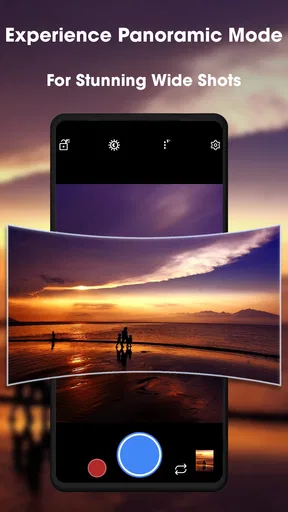
Right off the bat, the app is pretty sleek. It doesn’t bombard you with unnecessary fluff right when you open it. Instead, it greets you with a minimalistic interface that’s easy to navigate. You’ve got your shutter button right at the center, flanked by different modes and settings. I found this layout pretty intuitive, especially if you’re someone who wants to jump straight into capturing that perfect shot.
What I appreciate here is that the app doesn’t overwhelm you with a million options. Instead, it provides the essentials right upfront, so you can easily switch between modes like portrait, night, and HDR. It’s like having a pro camera condensed into your phone.
Features that Stand Out
Now, let’s talk features because this is where GCamera truly shines. Firstly, the HDR mode is a game-changer. It enhances the dynamic range of your photos, making colors pop and details stand out, even in tricky lighting conditions. I took a few shots during sunset, and the results were nothing short of stunning. The colors were vivid, and the details were sharp—exactly what you’d want when capturing those picturesque moments.
The Night mode is another standout feature. If you’ve ever tried taking photos in low light, you know how tricky it can be. But with GCamera’s Night mode, you can capture surprisingly clear images without the usual noise and fuzziness. It’s perfect for those impromptu night outings where you want to capture the city lights or a starry sky.
And of course, there’s the Portrait mode. Who doesn’t love a good bokeh effect, right? This mode does a fantastic job of blurring the background while keeping your subject in sharp focus. The result? Professional-looking portraits that are sure to impress your friends on social media.
Customization and Settings
For those who like to tweak their settings, GCamera offers a decent range of customization options. You can adjust things like ISO, white balance, and exposure, giving you more control over your shots. For me, experimenting with these settings was part of the fun. It allowed me to tailor my photos to the exact look and feel I wanted.
There’s also an option to shoot in RAW format, which is a huge plus for photography enthusiasts who want to edit their photos later on a computer. Shooting in RAW allows you to capture all the data from the camera sensor, giving you more flexibility in post-processing.
Performance and Usability
In terms of performance, the app runs smoothly without any noticeable lag. Even when switching between different modes and settings, the app remains responsive. It’s clearly optimized for a wide range of devices, which is great news if you’re using an older phone model.
Usability-wise, I found the app to be incredibly user-friendly. Whether you’re a seasoned photographer or just someone who loves snapping pics on the fly, it caters to both ends of the spectrum. The learning curve is pretty low, so even if you’re new to photography apps, you’ll find it easy to get the hang of it.
Final Thoughts
All in all, GCamera: GCam & HD Pro Photos is a fantastic tool for anyone looking to enhance their mobile photography. It combines a user-friendly interface with powerful features that can truly transform your photos. Whether you’re capturing landscapes, portraits, or night scenes, this app delivers impressive results that rival even some standalone cameras.
So, if you’re ready to take your smartphone photography to the next level, I’d say give GCamera a shot. It’s available for download on both Android and iOS, so you can start snapping those stunning photos right away!
My overall recommendation is to approach it as an alternative camera interface, not as a guaranteed upgrade for every phone. Its mix of automatic modes and manual adjustments is most appealing to people who enjoy shaping a shot and have time to check the result. If convenience is your priority, or if your phone’s own camera already gives you the look you want, there may be little reason to change your routine.
For curious photographers, though, a short trial with familiar subjects is worthwhile: compare a portrait, a backlit scene and a dim indoor shot, then keep the mode that genuinely improves your results. That gives you a grounded answer without relying on promises. I’d recommend it to anyone who wants more ways to experiment with mobile photos, while keeping the default camera handy for moments when speed and predictability matter more.
Pros
- High-quality photo enhancement.
- User-friendly interface.
- Supports various photo modes.
- Regular updates and improvements.
- Minimal ad intrusion.
Cons
- Limited manual control options.
- Requires stable internet for features.
- May drain battery quickly.
- Incompatibility with some devices.
- Occasional app crashes reported.
FAQs for GCamera: GCam & HD Pro Photos
What is GCamera: GCam & HD Pro Photos, and how does it enhance my photography experience?
GCamera: GCam & HD Pro Photos is a photography app designed to enhance your mobile camera capabilities beyond the standard settings. It leverages advanced algorithms to improve photo quality, offering features like enhanced HDR, night mode, and portrait effects. It's perfect for users looking to elevate their mobile photography without needing a professional camera.
Is GCamera compatible with all Android and iOS devices?
GCamera is primarily designed for Android devices, as it utilizes the Google Camera (GCam) mod. Compatibility may vary depending on your device's specifications and Android version. Unfortunately, it is not available for iOS devices, as it relies on Android-specific functionalities to enhance the camera performance.
Does GCamera require any special permissions or settings to function properly?
Yes, GCamera requires certain permissions to operate effectively, such as access to your camera, microphone, and storage. These permissions are necessary for capturing and saving photos and videos. Additionally, you may need to adjust your device's settings to allow installation from unknown sources if you're downloading a modded version.
Are there any in-app purchases or subscriptions required to access all features in GCamera?
While GCamera offers a variety of free features, some advanced functionalities may require in-app purchases. These purchases can unlock premium features like additional photo filters, higher resolution settings, and video stabilization. However, the core features of the app are available without any subscription, making it accessible for most users.
How does GCamera compare to the default camera app on my smartphone?
GCamera often provides superior performance compared to default camera apps, especially in areas like dynamic range, low-light photography, and detail capture. It utilizes Google's advanced image processing technologies, allowing users to capture clearer and more vibrant photos. However, performance can vary based on device compatibility and hardware capabilities.


